
How to set CTA's style override in Grids
In a Grid the way that the CTA's will be shown can be set using the associated droplist, called CTA style override
If the “CTA style override” option is set to “Use individual box settings”, the boxes and pages added to the grid show their individually set CTA styles.
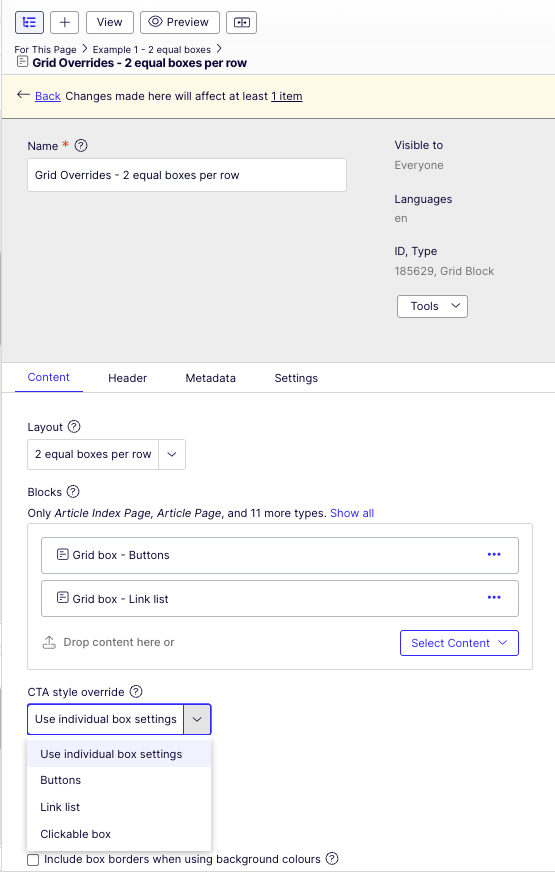
If the “CTA style override” option is set to anything else, the boxes and pages added to the grid are not showing their individually set CTA styles, but the style set on the Grid itself.
Grid Overrides - 2 equal boxes per row
Lorem ipsum dolor
Grid box block example 1 - blue, no image
CTA = Buttons & brand icon
Box colour can be white, blue, green, yellow, red, charcoal, lighest grey and transparent - no border.

Consectetur adipisicing
Grid box block example 1 - white, with top image & CTA = Link list
Box colour can be white, blue, green, yellow, red, charcoal, lighest grey and transparent - no border.
Grid box - 2 equal boxes per row - Buttons
Lorem ipsum dolor
Grid box block example 1 - blue, no image
CTA = Buttons & brand icon
Box colour can be white, blue, green, yellow, red, charcoal, lighest grey and transparent - no border.
Consectetur adipisicing
Grid box block example 1 - white, with top image & CTA = Link list
Box colour can be white, blue, green, yellow, red, charcoal, lighest grey and transparent - no border.